
Bendy and the Ink Machine Mods: A Compatibility Guide
Explore Bendy and the Ink Machine mods, from PS1 visuals and VR to randomizers. Check version compatibility and prepare your game before installing mods.
Jump to
What Can Bendy and the Ink Machine Mods Change?
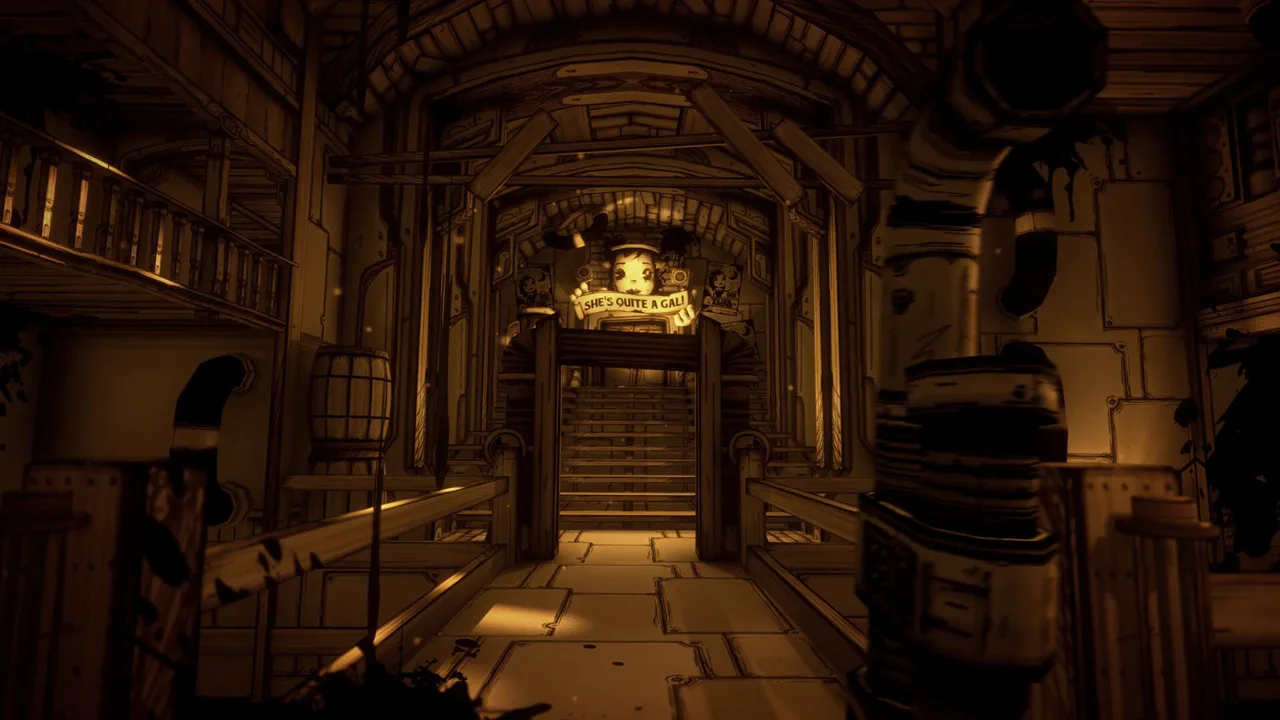
Bendy and the Ink Machine mods can give Joey Drew Studios a different look, change its soundtrack, or bring its cartoon horror into VR. Those changes give you new reasons to revisit Henry’s journey after the familiar hallways have lost some of their surprise. Before installing Bendy and the Ink Machine mods, match the project’s requirements to your game version—the difference between an older build and the updated game matters.
The options range from focused visual changes to a multiworld randomizer integration. Choose the change you actually want, then check its installation requirements before adding anything else.
| Mod or project | What it changes |
|---|---|
| PS1 Graphics Mod | Adds low resolution, dithering, CRT effects, vertex jitter, and fog |
| Multiworld randomizer integration | Integrates the game with a multiworld randomizer |
| BendyVR | Provides a PCVR adaptation |
| “Build Our Machine” menu music replacement | Replaces the menu music with the song’s radio version |
These projects take different approaches to replaying the same game. The PS1 Graphics Mod changes the presentation, while the menu music replacement targets one specific part of the audio. The randomizer integration changes how the game connects to a multiworld randomizer, while BendyVR adapts it for PCVR.
Other projects include Ultimate Bendy Mod, Ultimate Bendy Mod (My Coded Version), Bendy: Enhanced Quality of Life Mod, and Out of the Ink Machine / 2017Prototype. Keep those exact names handy when browsing: similarly named projects are separate downloads, and their requirements deserve separate checks.
Avoid building a download queue around names alone. Read each project’s feature description, supported version, and dependencies before deciding which changes belong in your game.
Check Your Game Version and Mod Loader
Compatibility is the main checkpoint for Bendy and the Ink Machine mods. Older projects sit alongside newer releases, and the game has received substantial technical updates.
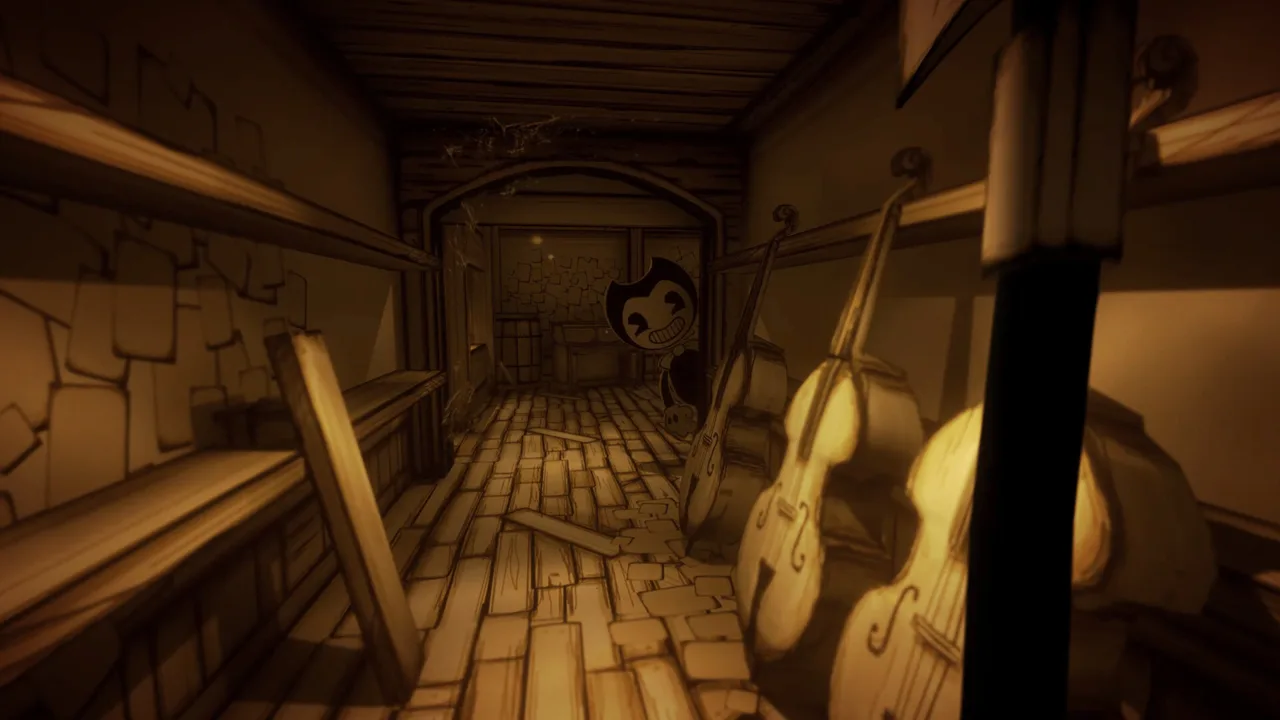 Image: Steam / Joey Drew Studios
The official Quality of Life 2.1.0 update upgraded Unity to 2022.3.62f2. The game has also moved to IL2CPP. Meanwhile, the BepInExPack package offered for BATIM is described as a package for Mono Unity games.
That distinction matters when choosing installation instructions. Unity version, game version, and scripting backend are separate pieces of the compatibility check.
| Compatibility detail | What to check before installing |
|---|---|
| Game version | Match the installed build to the version the mod supports |
| Unity version | Check requirements against the game’s engine update |
| Mono or IL2CPP | Match the loader and mod to the required backend |
| Dependencies | Install the packages named in that mod’s instructions |
| Platform | Follow instructions written for your platform and edition |
Do not assume that a loader appearing beside a mod makes it suitable for every version of BATIM. Use the dependency and version requirements for the specific release you intend to install.
The same care applies to mod managers. A mod manager supports managing mods across multiple games; BepInExPack supplies a preconfigured BepInEx package for Mono Unity games. They serve different purposes. Check both the management tool and the required framework before following a setup tutorial.
For Bendy and the Ink Machine mods built around older versions, read version numbers literally. Instructions targeting 1.5.2.2 are instructions for that build. An old description saying “latest version” does not replace a specific compatibility requirement.
Keep your game version and the mod’s release information together while setting up. That makes it easier to spot a mismatch before replacing files.
Prepare Your Game Before Installing Mods
Start with a working copy of the game and protect your progress before changing it. Keep the mod’s instructions open, especially when the installation involves replacing game assets.
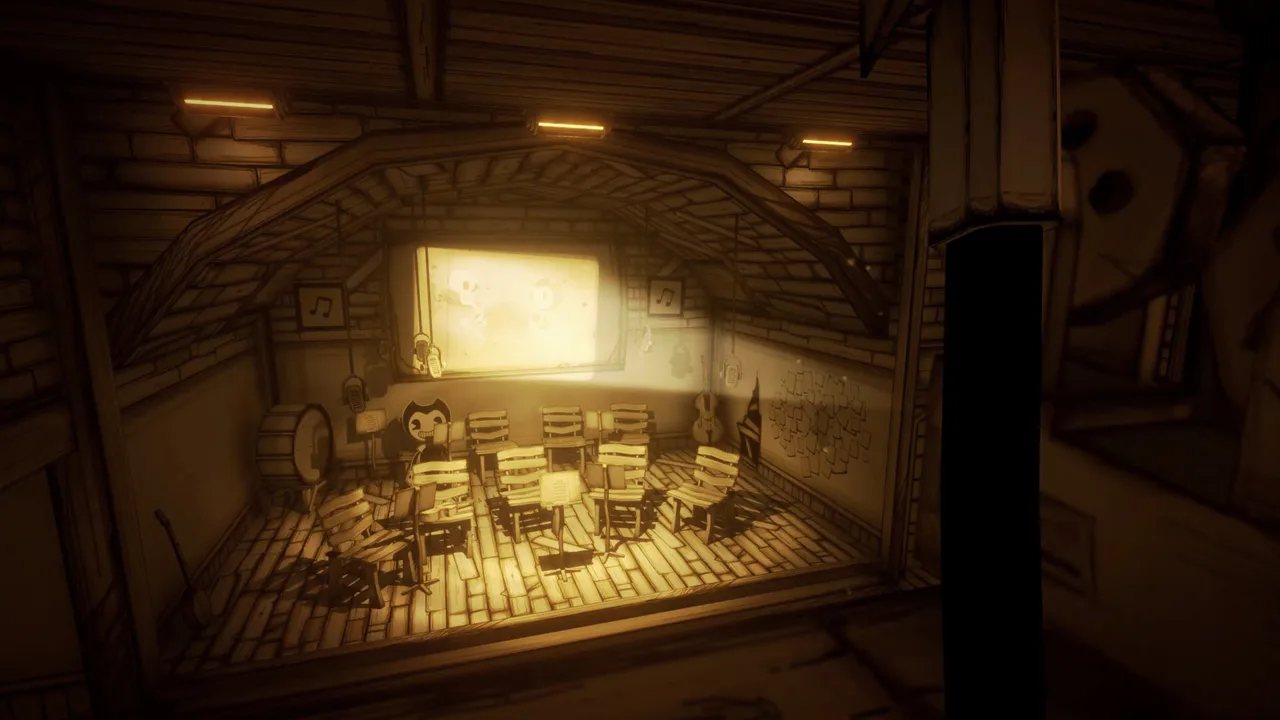 Image: Steam / Joey Drew Studios
An older Windows save location used by the 1.5-era game is:
...\AppData\LocalLow\Joey Drew Studios\Bendy and the Ink Machine\Saves
Use that as a version-specific location when preparing an older installation. Check that the folder contains the saves you intend to preserve before copying it.
| Preparation step | What to do |
|---|---|
| Record your version | Note the game build before choosing a mod release |
| Preserve progress | Back up the relevant save files before changing game files |
| Check requirements | Read the supported version and dependency instructions |
| Locate the game folder | Use Steam’s option to browse local files |
| Follow the project’s directions | Use its stated destination and installation method |
Steam’s local-file browsing option is useful when an installer asks for the game directory. Select the actual installation folder rather than guessing from a shortcut or another Steam library location.
Localization projects illustrate why destinations matter. The Ukrainian localization instructions for version 1.5.2.2 place game content inside Bendy and the Ink Machine_Data. Other projects use their own installation procedures. Follow the destination for the project you downloaded.
For Bendy and the Ink Machine mods that replace files, preserve the original files before accepting replacements. Keep the backup separate from the files you are about to modify.
Add changes individually and check the game between installations. If a problem appears, that gives you a clear starting point for troubleshooting. Keep track of what you changed instead of relying on memory after several downloads.
Also separate installing a mod from changing game versions. Check compatibility first, then make only the changes required by the chosen project. Older localization instructions sometimes include rollback steps, but those steps belong to those particular versions and projects.
Explore PS1 Graphics, VR, and Randomizer Mods
The most interesting mod choice depends on what you want to change about your next visit to the studio. Focus on the actual features rather than download totals or a project’s title.
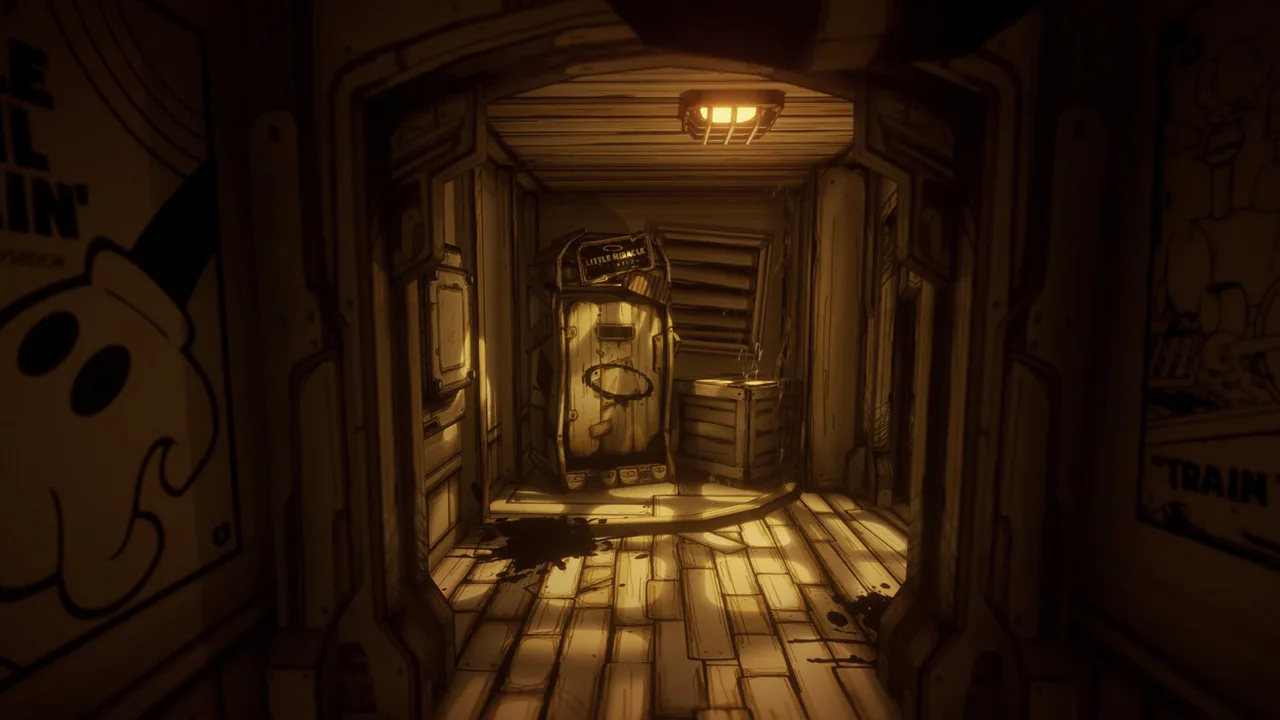 Image: Steam / Joey Drew Studios
PS1 Graphics Mod
The PS1 Graphics Mod adds several recognizable PlayStation-era effects: low resolution, dithering, CRT treatment, vertex jitter, and fog.
That combination changes how the studio’s drawn walls, corridors, and characters appear on screen. Vertex jitter and dithering are deliberate parts of the retro presentation. Consider those effects when deciding whether you want a different visual style.
Check screenshots and the project’s settings information before installing. Choose it for the specific retro effects it offers, and check its game-version requirements separately.
BendyVR
BendyVR is a PCVR mod. Keep that platform distinction in mind when preparing your headset setup.
For the January 2023 release, the performance guidance was to disable these optional effects:
- Anti-Aliasing
- Depth of Field
- Bloom
- Ambient Occlusion
That release also included Openvr_FSR scaling set to 77%, with settings accessible in the mod folder. Keep those details tied to that release when comparing them with instructions for another version.
Pimax headsets had HUD issues during that period. Check headset-specific compatibility alongside the supported game build before setting up VR.
Among Bendy and the Ink Machine mods, BendyVR requires attention to both the game installation and the headset setup. Follow the release’s own configuration instructions before adjusting additional graphics options.
Multiworld Randomizer Integration
A randomizer mod provides a multiworld randomizer integration for Bendy and the Ink Machine.
Read its setup requirements as part of the larger randomizer installation. Include the integration’s dependencies and configuration in your compatibility check rather than treating the download as a simple visual replacement.
Keep the multiworld randomizer integration distinct from other BATIM mods when searching for instructions. Its multiworld integration has a different purpose from the PS1 graphics overhaul, audio replacements, or VR adaptation.
Separate Official Updates From Community Changes
Before installing a quality-of-life project, check what the updated base game already includes. Version 2.1.0 introduced changes across saving, combat, menus, and chapter access.
| Feature | Official version 2.1.0 behavior |
|---|---|
| Steam Deck support | Steam Deck Verified |
| Cloud saves | Steam Cloud enabled |
| Chapter access | All chapters except Archives unlocked regardless of progress |
| Weapon attacks | Holding the attack button repeatedly attacks with every weapon |
| Seasonal content | Runs throughout October and can be toggled in Options |
| Minigame camera sensitivity | Matches the player’s sensitivity setting |
Those changes matter when comparing Bendy and the Ink Machine mods with the current game. For example, check whether a quality-of-life mod adds something you want beyond the updated attack behavior or menu improvements.
The update also addressed saving-related softlocks and crashes, improved controller menu navigation, and restored the manual-save icon. Older troubleshooting instructions belong to a different version context.
Seasonal content is another clear example. Older instructions describe an October 23–31 event window; version 2.1.0 extends seasonal content throughout October and adds an Options toggle. Use the newer behavior when playing that version.
Check Localization Versions Carefully
Fan translations and voice replacements need the same compatibility checks as gameplay mods. The Ukrainian localization by Logika Localization Team and Sandigo Studio includes text and audio, with its v1.1 release targeting game version 1.5.2.2.
The Russian localization by “FaN&C” Family’s includes translated textures and voice acting. Its installer also offers an option to retain English voices.
Check the version requirements before replacing localization assets. The Ukrainian project’s update work involves changed assets and asset IDs, and older installations have produced black screens after game changes.
The base game already includes Russian text support, while version 2.1.0 adds Traditional Chinese and revises localization across languages. Check the in-game language options before choosing a separate translation package.
When you are ready to begin, use your own copy of Bendy and the Ink Machine on Steam, choose one compatible project, and preserve your progress before installing it.
FAQ
Where should I start with Bendy and the Ink Machine mods?
Choose the change you want first: retro graphics, different menu music, VR, or a multiworld randomizer. Then check that project’s supported game version, dependencies, and installation instructions.
Does the Mono BepInExPack work with the IL2CPP version?
The package described here targets Mono Unity games. Use a loader and mod release that explicitly match your game’s backend. Mono and IL2CPP requirements are separate compatibility checks.
Can I play Bendy and the Ink Machine in VR?
BendyVR provides a PCVR adaptation. Check the release’s supported game build and headset requirements before installing. Its January 2023 configuration included specific graphics guidance and Openvr_FSR settings.
Do older localization mods work with version 2.1.0?
Use a localization release that explicitly supports your installed build. The Ukrainian localization v1.1 targets 1.5.2.2, while older Russian localization instructions include 1.5-era requirements. Match those version numbers before replacing files.
Continue with
 Bendy and the Ink Machine Reddit: Help, Lore & TipsBendy and the Ink Machine reddit searches made easier: find focused puzzle help, compare version changes, avoid spoilers, and plan your achievement runs.
More in Community
See all Community
Continue exploring
Bendy and the Ink Machine Going to Be Sick: Unlock Guide
Unlock Bendy and the Ink Machine Going to Be Sick by boarding Bertrum's ride in Chapter 4. Learn timing, seat interaction, and achievement cleanup order.
Bendy and the Ink Machine Valued Employee: Full Guide
Unlock Bendy and the Ink Machine valued employee with a Chapter 5 stealth route, pipe puzzle steps, patrol tips, and advice for clean Administration runs.
Join the community
Official channels for news, updates and player help: