
Bendy and the Ink Machine How to Save: Punch Clock Guide
Bendy and the Ink Machine how to save explained: use punch clocks, understand Chapter Select limits, back up PC saves, and handle a stuck saving icon.
Jump to
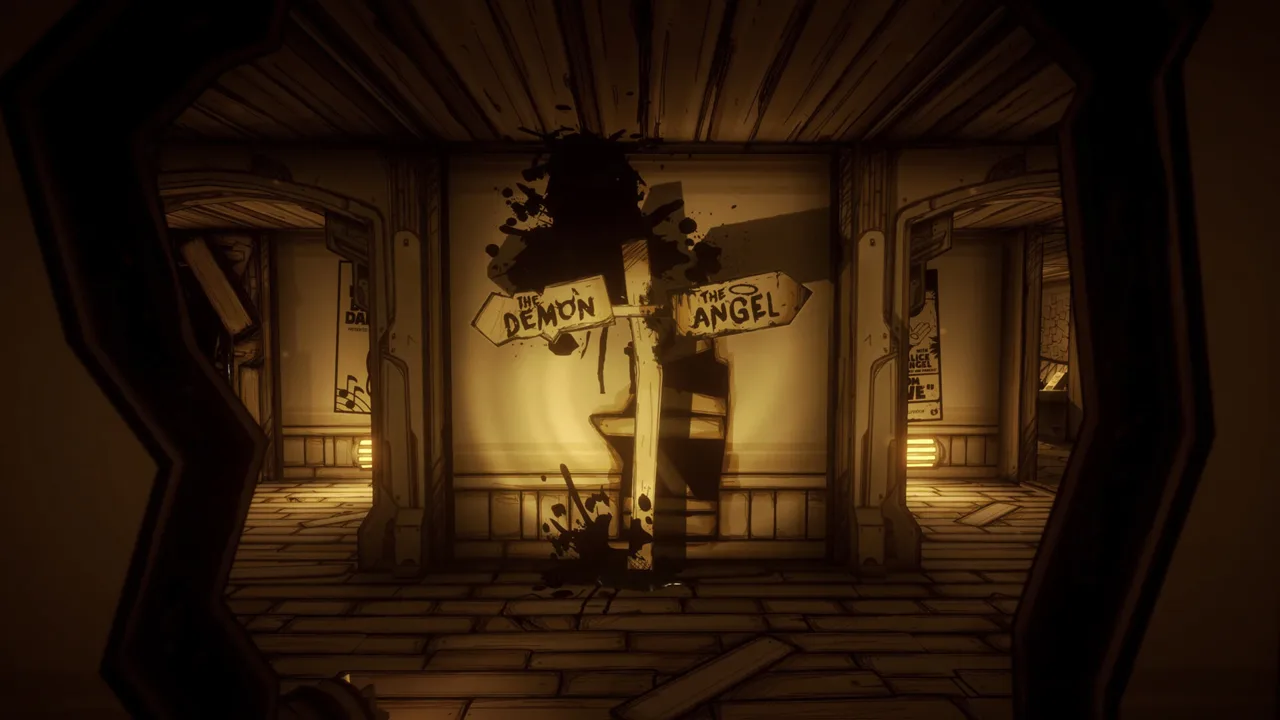
Bendy and the Ink Machine How to Save: Start With a Punch Clock
Searching for Bendy and the Ink Machine how to save before quitting can spare you a frustrating replay through Joey Drew Studios. Save your campaign progress by interacting with a punch clock, then use Continue when you return. The crucial distinction behind Bendy and the Ink Machine how to save is the difference between a regular campaign and Chapter Select, which disables mid-chapter saving under the older PC saving rules.
Punch clocks are the game’s manual save points. When you reach one during your campaign, interact with it rather than simply walking past it. Use the interaction control shown by your game; there is no need to guess a keyboard shortcut or controller button.
| Step | What to do | What it accomplishes |
|---|---|---|
| Enter your campaign | Start through New Game or resume through Continue | Keeps you in the campaign flow |
| Find a punch clock | Look for the time clock as you explore | Gives you access to a manual save point |
| Interact with the clock | Activate it using your interaction control | Triggers a manual save |
| Watch the save indicator | Let the saving activity finish before leaving | Gives the save process time to complete |
| Resume later | Choose Continue | Loads your saved campaign progress |
Make punch clocks part of your route through the studio. Save when you reach one, especially before ending a session. If you complete more objectives afterward, remember that your earlier manual save predates that work.
The game also has automatic saves, but manual saving gives you a deliberate stopping point. Use the clock before taking a break instead of assuming your latest movement, item pickup, or objective has already been recorded.
You do not need to finish the entire story in one sitting. The practical habit is straightforward: keep playing your campaign, interact with a punch clock when you want to preserve progress, and let the save finish before quitting.
Official page: Bendy and the Ink Machine (joeydrewstudios.com)
Campaign Saves vs. Chapter Select
The menu option you use matters. Under the v1.5-era PC saving rules, a campaign started through New Game supports saving, while a chapter launched through Chapter Select does not support mid-chapter saves.
 Image: Steam / Joey Drew Studios
That distinction explains a confusing situation: you replay a chapter, use a punch clock, leave, and then discover that Continue takes you back to your campaign rather than the replay position you expected.
For Bendy and the Ink Machine how to save troubleshooting, check how you entered the chapter before assuming your save file is broken.
| Mode or feature | Saving behavior | What to remember |
|---|---|---|
| New Game campaign | Supports campaign saving | Use punch clocks during the run |
| Continue | Resumes saved campaign progress | Use it to return to your ongoing playthrough |
| Chapter Select in older PC versions | Does not preserve mid-chapter replay progress | Plan to finish the selected chapter in one session |
| Steam version 2.1.0 chapter access | All chapters except Archives are unlocked regardless of progress | Chapter availability and saved campaign progress are separate |
Starting New Game is not a recovery step for an existing save. If you already have a campaign underway, choose Continue to resume it. Reserve New Game for when you actually intend to begin another campaign.
Version 2.1.0 also changes how you should read older chapter-unlock advice. On that Steam version, access to the regular chapters does not demonstrate that you have completed them in your current campaign.
Plan achievement replays around the mode
If you are replaying through Chapter Select under the older saving rules, set aside enough time to finish the chapter. A punch clock does not turn that replay into a resumable campaign session.
Pay particular attention to collectible attempts. In v1.5-era PC play, quitting mid-chapter could reset that chapter’s Bacon Soup collection progress. Finish a chapter’s soup run in one sitting to avoid repeating the search.
Keep a checklist beside you for collectibles, but remember its purpose: it tracks your search. It does not preserve the game’s internal progress when you leave a mode that does not save.
Bendy and the Ink Machine How to Save: Reading the Save Icon
After interacting with a punch clock, watch the saving indicator. Steam version 2.1.0 restored the icon’s appearance during manual saves, so older advice about a missing icon needs that version context.
 Image: Steam / Joey Drew Studios
The same update also addressed several softlocks and crashes involving saving, dying, and unintended locations. Keep the game updated before working through an old troubleshooting routine.
Older PC versions had a particularly troublesome saving failure: the Bendy-head icon could remain on-screen because the save operation had not finished successfully. Subsequent progress could then be lost.
| Situation | Relevant version context | What to do |
|---|---|---|
| Manual saving shows no icon | Steam 2.1.0 restored manual-save icon visibility | Update before using older icon-based advice |
| The saving icon remains stuck | Older PC save bug | Restart the entire game |
| Returning to the menu does not clear the problem | Older PC save bug | Fully exit rather than only returning to the title screen |
| A replay resumes somewhere unexpected | Older Chapter Select saving rules | Check whether you entered through Chapter Select |
| You want protection against save loss | PC save backups | Preserve a separate copy of the Saves folder |
For Bendy and the Ink Machine how to save problems involving that older stuck-icon bug, the distinction between quitting to the menu and closing the game is important. Returning to the menu did not clear the failure; restarting the whole game was necessary.
A restart also does not restore progress that never saved successfully. If the indicator becomes stuck, avoid spending another long stretch completing objectives in that session.
Do not assume that repeatedly interacting with a clock will repair an unfinished save operation. Address the stuck session first, then resume from the progress the game retained.
Keep the two icon issues separate: an icon that fails to appear and an icon that never disappears are different symptoms. The 2.1.0 visibility fix specifically restores feedback during manual saving.
Back Up Your Windows Save and Understand Steam Cloud
Manual saving and backing up serve different purposes. A punch clock records campaign progress inside the game. A backup preserves a separate copy of your save data.
 Image: Steam / Joey Drew Studios
For Bendy and the Ink Machine how to save planning on Windows, the save directory is inside your user account’s AppData folder:
AppData\LocalLow\Joey Drew Studios\Bendy and the Ink Machine\Saves
| Platform or feature | Location or behavior |
|---|---|
| Windows PC saves | Your user folder → AppData → LocalLow → Joey Drew Studios → Bendy and the Ink Machine → Saves |
| Steam Cloud in version 2.1.0 | Cloud saving is enabled |
| Separate local backup | A copy of your Saves folder kept outside the active save directory |
Make a separate backup
Use the entire Saves folder rather than selecting an unfamiliar file and hoping it contains everything.
- Save at a punch clock during your campaign.
- Let the saving activity finish.
- Close the game.
- Copy the Saves folder to a separate backup location.
- Give the backup a clear label so you can identify the progress it preserves.
Keep an earlier backup when making a newer one. That gives you a previous copy to return to if you accidentally back up an already damaged save.
Restore without discarding your current files
Close the game before restoring a backup. Preserve a separate copy of the current Saves folder, then copy your chosen backup into the original location.
Remember that restoring earlier save data means returning to that earlier point. Any later campaign progress belongs to the newer files you set aside.
Keep cloud saving in perspective
Steam Cloud is enabled in Steam version 2.1.0. Treat cloud synchronization and punch-clock saving as separate parts of the process: the clock saves your campaign in-game, while Steam Cloud handles cloud storage for the Steam version.
Continue using punch clocks even with cloud support enabled. Keep separate local backups when preserving a particular campaign position matters to you.
Build a Saving Routine for Longer Objectives
Once you understand Bendy and the Ink Machine how to save, use that knowledge to organize your sessions around the work ahead.
Chapter 3 sends you through several tasks for Alice Angel, including collecting gears, hunting Swollen Searchers, solving valve panels, destroying Bendy cutouts, and retrieving ink hearts. Save at available punch clocks as you progress rather than leaving every task between two distant stopping points.
Before handing over the ink hearts, finish any remaining exploration you intend to do in that chapter. Turning them in advances you toward leaving it.
For achievement attempts, preserve a backup before a demanding section when your campaign route allows it. This is especially useful when you want to keep a specific starting position rather than replay earlier objectives.
Separate story progress from collectible cleanup
Use different session goals for different jobs:
- Story session: Resume through Continue, complete objectives, and save before stopping.
- Chapter replay: Under the older PC rules, allow time to finish without a mid-chapter save.
- Bacon Soup attempt: Plan a complete chapter run and track cans as you collect them.
- Backup session: Close the game after saving, then preserve the Saves folder separately.
Avoid using force-closing as your achievement strategy. Older PC versions could autosave on death, so quitting afterward did not provide a dependable rewind.
Finish with a brief check before leaving the studio: have you interacted with a punch clock, has saving finished, and are you returning later through Continue? Those habits keep the focus on the next objective instead of another trip through familiar hallways.
FAQ
In Bendy and the Ink Machine how to save manually?
Interact with a punch clock during your campaign. Let the saving activity finish before quitting, then select Continue when you return. Punch clocks are the manual save points used in Bendy and the Ink Machine.
Why does Chapter Select restart my chapter?
Under the older PC saving rules, Chapter Select does not preserve mid-chapter replay progress. Launching a chapter there and using a punch clock does not create the same resumable progress as playing through a campaign. Plan those replays as complete chapter sessions.
What should I do if the Bendy saving icon stays on-screen?
For the older PC stuck-save bug, fully close and restart the game. Returning only to the main menu did not clear it. Progress made after the saving failure could be lost, so avoid continuing a lengthy session with the indicator stuck.
Does Bendy and the Ink Machine support Steam Cloud?
Yes. Steam version 2.1.0 enabled Steam Cloud. Continue saving at punch clocks during your campaign, and keep a separate Windows save backup when you want to preserve a particular progress point.
Continue with
 Bendy and the Ink Machine Walkthrough: All 5 ChaptersUse this Bendy and the Ink Machine walkthrough to solve chapter puzzles, handle boss fights, find missable secrets, and reach the ending with fewer stops.
More in Guide
Bendy and the Ink Machine Beginner Guide: Start Here
Use this Bendy and the Ink Machine beginner guide to tackle early puzzles, handle enemies, find useful collectibles, and avoid common first-play mistakes.
Bendy and the Ink Machine Chapter 1: Full Walkthrough
Beat Bendy and the Ink Machine chapter 1 with a step-by-step walkthrough covering the six ritual items, ink flow, hidden extras, and the basement escape.
Bendy and the Ink Machine Controls: Platform Guide
Learn Bendy and the Ink Machine controls for PC, PlayStation, Xbox, Switch, and mobile, with button charts, interaction tips, and updated combat advice.
Bendy and the Ink Machine How Long Is It? Full Guide
Bendy and the Ink Machine how long is it? Explore the four-hour story, five chapters, replay content, and tips for planning your trip through the studio.
Continue exploring

Bendy and the Ink Machine Reddit: Help, Lore & Tips
Bendy and the Ink Machine reddit searches made easier: find focused puzzle help, compare version changes, avoid spoilers, and plan your achievement runs.
Bendy and the Ink Machine Music Puzzle: Full Solution
Solve the Bendy and the Ink Machine music puzzle with the right instrument order, Wally's keys, and projector timing. Open Sammy's sanctuary step by step.
Join the community
Official channels for news, updates and player help: